
The 45-49 Health Assessment




The 45-49 Health Assessment is designed to support the health of busy Australians in this age group. It helps identify risk factors for chronic diseases and encourages preventive health measures.
The assessment is crucial as it can catch health issues before they become serious, allowing for timely interventions.
QI activity overview
What is the aim of this QI activity?
complete 10 Health Assessments in eligible patients aged 45 to 49 over a 3-month period.
What will I need to do?
identify and invite eligible patients aged 45 to 49 to complete a health assessment.
How will I complete this activity?
identify patients aged 45 to 49 who are eligible for a health assessment
invite eligible patients for a health assessment
complete health assessments on eligible patients
Where do I document my results?
Who can I contact for support?
For support with this activity please contact the General Practice Quality Improvement team on 38647540 or email [email protected].
Step 1: Start your activity
1. Identify patients aged 45 to 49 who are eligible for a health assessment
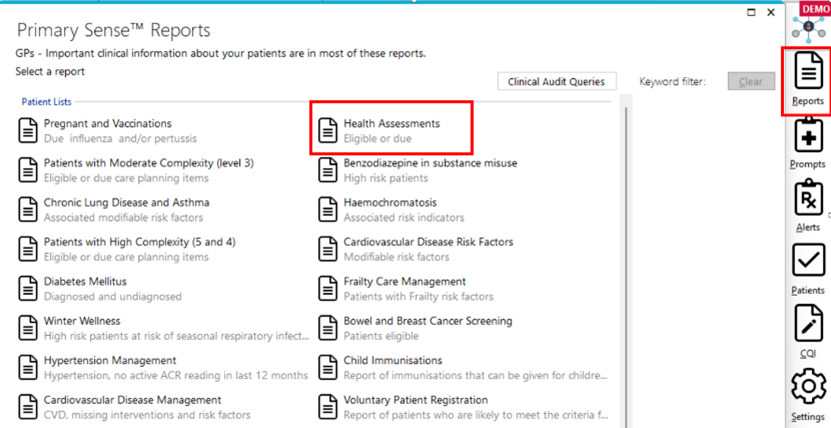
Use Primary Sense desktop report “Health Assessments” to identify eligible patients who are due for a health assessment.
Note: as Primary Sense data is based on information held in your clinical software. It is important to always confirm patients’ eligibility via PRODA. To learn how to do this, please refer to Services Australia website.
2. Invite identified patients in for a health assessment
Determine your targeted contact method for eligible patients e.g. SMS, phone, email, letter. You could also consider a follow up method for non-respondents.
It may take a few different approaches to find the method that works for your practice and your patients. Be ready to change and adjust your approach based on the responses and feedback you receive from your patients and team members.
Guidance for sending SMS
You may prepare and save the Primary Sense report in CSV format (see relevant button below), which will create a patient recall list for use with HotDoc or other compatible applications.
For instructions on sending bulk SMS messages, please contact your SMS service provider.
Guidance for sending emails or letters
Refer to example invitation letter. Template can be modified to suit your practice.
3. Complete health assessments for eligible patients in your practice
Use the template provided in your clinical software to support the effective conduct and documentation of health assessments.
For Best Practice Users:
Please follow instructions here.
For MedicalDirector Users:
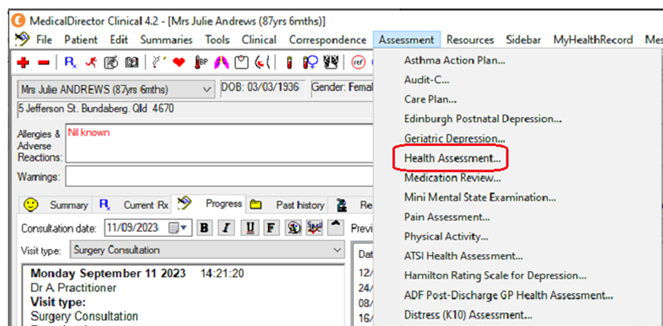
On a patient file, select “assessment” then “health assessment”.
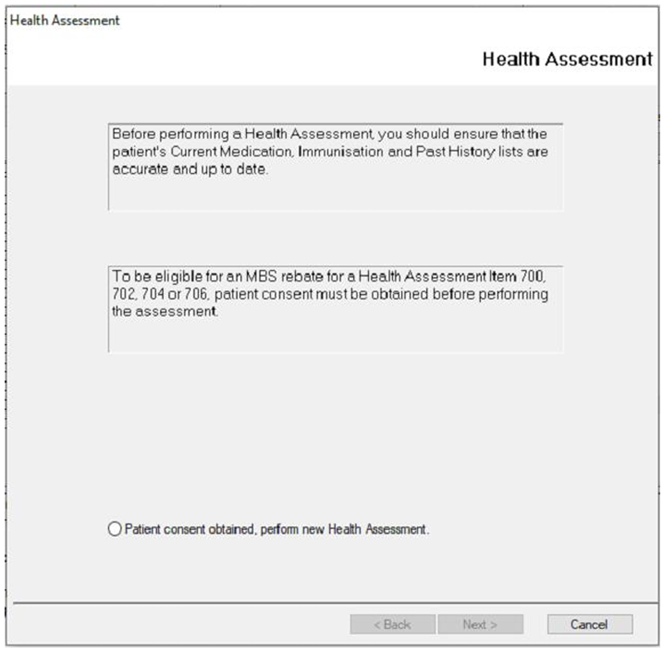
Follow the screens and complete fields as required and click on “save”.
In addition, you may want to provide information on local health services or organisations to address identified health issues to add value to your patients’ experience. You may like to review the available lifestyle modification programs in Brisbane south via HealthPathways.
Step 2: Track your results
Suggested measures and data sources
Manually record the number of health assessments completed in patients aged 45 to 49 using our tracking poster.
Use MBS item billing reports in your clinical software to track the number of health assessments billed.
For Best Practice users
1) From the Bp Premier home screen, select Management > Reports
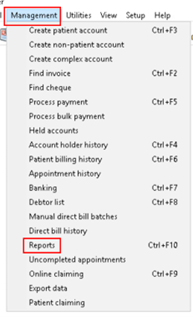
2) Select “Payments – by Account Type (grouped by item) including related services”
3) Choose the report parameters by selecting the date, locations and providers. Go to “Billing” and select 701, 703, 705 and 707 for MBS items. Click on View Report.
This report provides a list of patients billed under the item numbers. Use the name of the patients to help you identify those who received a 45 to 49 Health Assessment. Please refer to here for more detailed information.
For MedicalDirector users
1) In Pracsoft, go to Reports > All reports
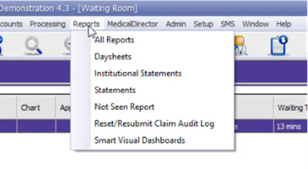
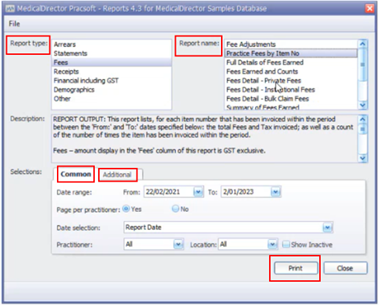
2) Under report type, choose Fees
3) For report name choose Practice Fees by Item No
4) In the Common tab, select the reporting date range
5) Go to Additional tab, and type in the item numbers
6) Click Print to display the report on screen.
Step 3: Complete and reflect on your activity
How did you go?
As a team, reflect on how the activity went.
What were the challenges/barriers?
What worked well?
Are there any changes that you could implement to improve on patient experience?
Share your results
Please let us know whether you are currently working on this activity, or have completed it, by using the feedback buttons below. We also welcome case studies, if you would like to share your experience and outcomes from this activity, you can do so here.
Next steps
Consider what additional services or recommendations you can provide to patients after completing a health assessment.
Example of completed QI activity
Resources to support with your activity
Tools and resources
Mediicare information on Health Assessments 45-49
RACGP - About the Red Book
RACGP - Putting prevention into practice: Guidelines for the implementation of prevention in the general practice setting
RACGP - Smoking, nutrition, alcohol, physical activity (SNAP)
RACGP - Handbook of Non-Drug Interventions (HANDI)
The role of practice nurses in health assessments
Australian cardiovascular disease risk calculator | AusCVDRisk
Type 2 diabetes risk calculator | Diabetes Australia
Frax Calculator | FRAXplus®
We appreciate your feedback!
Our Quality Improvement Team works with general practices to provide practical advice and resources to help plan, implement, and review your QI activities. Your feedback helps our team to provide the best possible support for your practice.
Contact General Practice Quality Improvement
Phone: 07 3864 7540