
Managing your patients’ cervical screening records (Part 1)




Update 100 patient records with their latest cervical screening result over a 4-week period. To better understand your patient population and their cervical screening history, it is important to ensure results are entered in the cervical screening section of your clinical software.
Entering results from your inbox/holding file into this section ensures that critical results are updated throughout your information system, e.g. your referrals, recalls/reminders and reflected in Primary Sense reports. This encourages integrity of your patient file and assists with accuracy of your recalls.
QI activity overview
What is the aim of this QI activity?
The aim of this QI activity is to:
update 100 patient records with their latest cervical screening result over a 4-week period.
What will I need to do?
record patient’s cervical screening test (CST) result in the correct field of patient file in your clinical software.
How will I complete this activity?
integrate your clinical software with the National Cancer Screening Register (NCSR) Hub.
develop a process for entering cervical screening test (CST) results into patient files.
Where do I document my results?
Who can I contact for support?
For support with this activity please contact the General Practice Quality Improvement team on 38647540 or email [email protected].
Step 1: Start your activity
1. Integrate your clinical software with the NCSR Hub.
This allows you to access patient cancer screening results directly from their file in your clinical software, without needing to use PRODA.
refer to instructions from NCSR. Integration is a once only step, if your practice already has NCSR Hub integrated, you can move onto Step 2.
To check if NCSR is integrated and enabled on your clinical software:
For Best Practice users
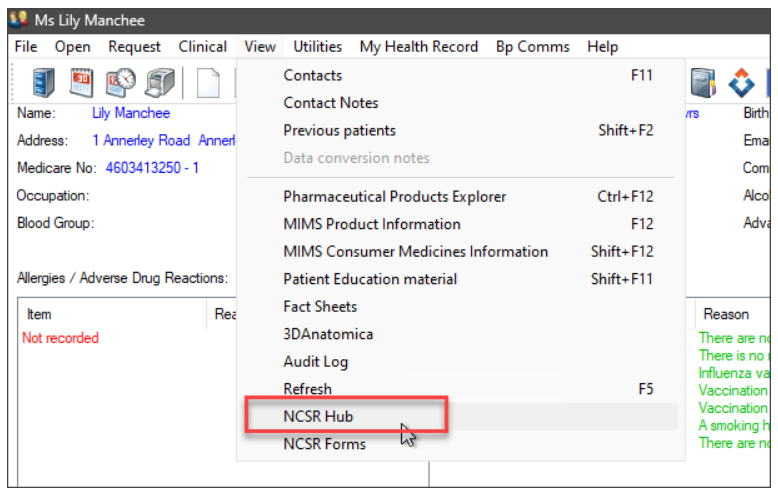
In the patient record, select View > NCSR Hub. The NCSR Hub will open for the patient record for a participating patient.
For MedicalDirector users
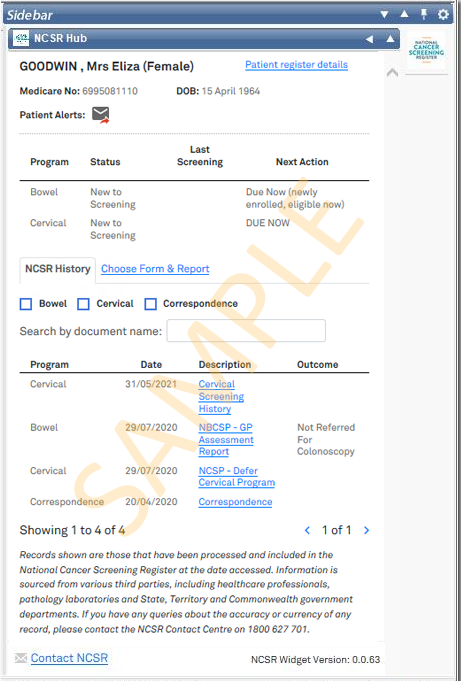
For registered patients, the widget appears as follows with the NCSR History tab displayed by default. This tab contains the patient’s history of screening results retained within NCSR.
For additional support with this process, contact:
Brisbane South PHN QI team on 07 3864 7540,
NCSR Technical Support on 1800 627 701 or,
book a NCSR technical support online via NCSR: Registration Help
Please note: If you are experiencing an NCSR Error Message and you are a BpPremier user, please use the following instructions to fix: Issue: 'Unknown Error' when accessing NCSR forms.
2 - Develop a process for entering CST results directly into the cancer screening section of your patient files.
Speak to your clinical team to understand your practice’s current process for saving incoming CST results. This can be done directly from the inbox/holding file as results are received, or via the cervical screening section in the patient file.
Consider who in the team is currently responsible for manually entering the patients’ latest results.
For Best Practice users:
For MedicalDirector users:
3. Identify patients with missing up-to-date CST results
Use Primary Sense report, “patients missing PIP QI or accreditation measures” to identify patients without an up-to-date CST result.

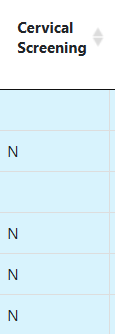
You will see that any patient with an “N” in the Cervical Screening column, does not have an up-to-date CST in their file. Your QI team may like to work through this report and update patients’ latest result from the NCSR, according to your process. If the patient is overdue, ensure they are contacted as a reminder to book in for a screening test.
Cervical screening tests can be completed via speculum or self-collection. For more information about the variety of screening options, see here.
Step 2: Track your results
Trial your new change for 4 weeks, with a goal to update 100 patients records with their latest cervical screening results.
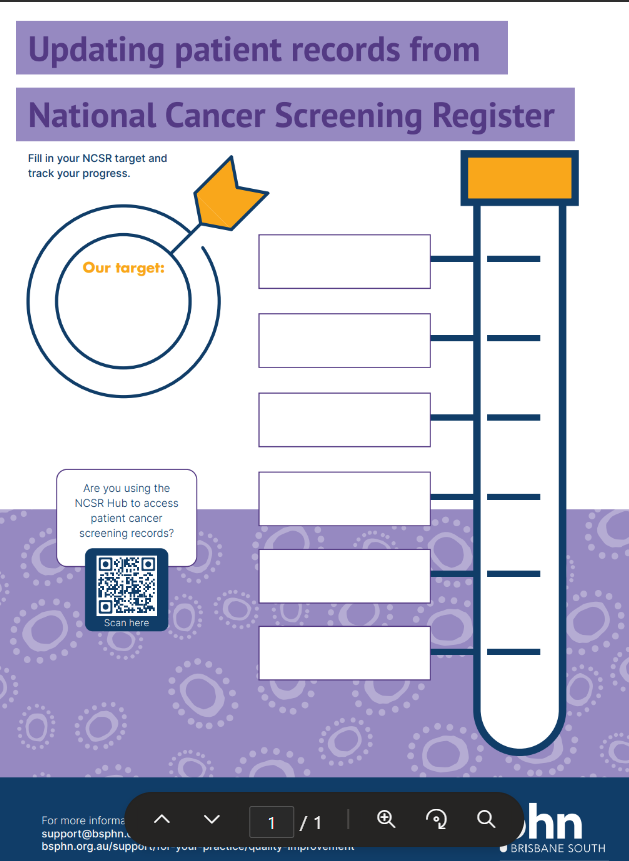
Use the “tracking poster” provided in the link above to manually track the number of patient records your team has updated each week.
Step 3: Complete and reflect on your activity
How did you go?
As a team, reflect on how the activity went.
What were the challenges/barriers?
What worked well?
Are there any changes that you could implement to support the recording of CST of your patients in your practice?
Share your results
Share your results with your team and Brisbane South PHN.
Next steps
Consider how you can use the up-to-date CST records to set up “reminder” system for future screening for your patients.
Example of completed QI activity
Use this blank template to get started with Quality Improvement Activities:
Brisbane South Primary Health Network: QI Tools and resources | Brisbane South PHN / new template
refer to a completed example to assist with documentation: PDSA example for CST records update
Resources to support with your activity
We appreciate your feedback!
Our Quality Improvement Team works with general practices to provide practical advice and resources to help plan, implement, and review your QI activities. Your feedback helps our team to provide the best possible support for your practice.
Learn how practices are creating impact through quality improvement.


Contact General Practice Quality Improvement
Phone: 07 3864 7540